SQL Buddy
SQL Buddy icon

SQL Buddy

Productivity tools for T-SQL in VS Code: schema-aware completion, snippets, formatting, code analysis, refactoring and query execution, plus a database dashboard and a profiler. Free and open source.

Or search the Extensions view for RashikTuladhar.sql-buddy. Open VSX serves editors built on VS Code that do not use the Microsoft Marketplace.

SQL Server 2016+ Azure SQL MySQL 8.0 PostgreSQL 12+ MIT licence No telemetry
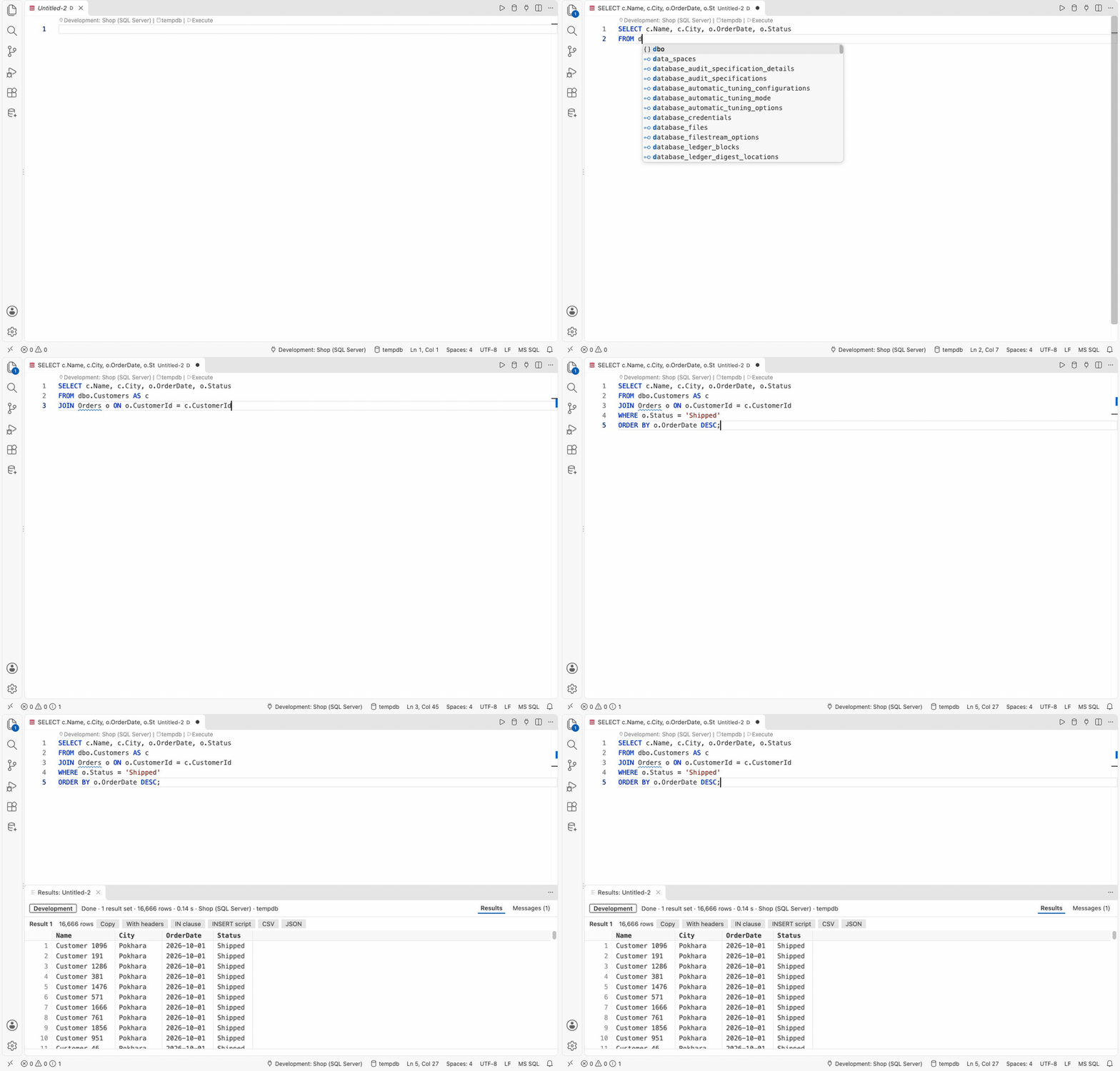
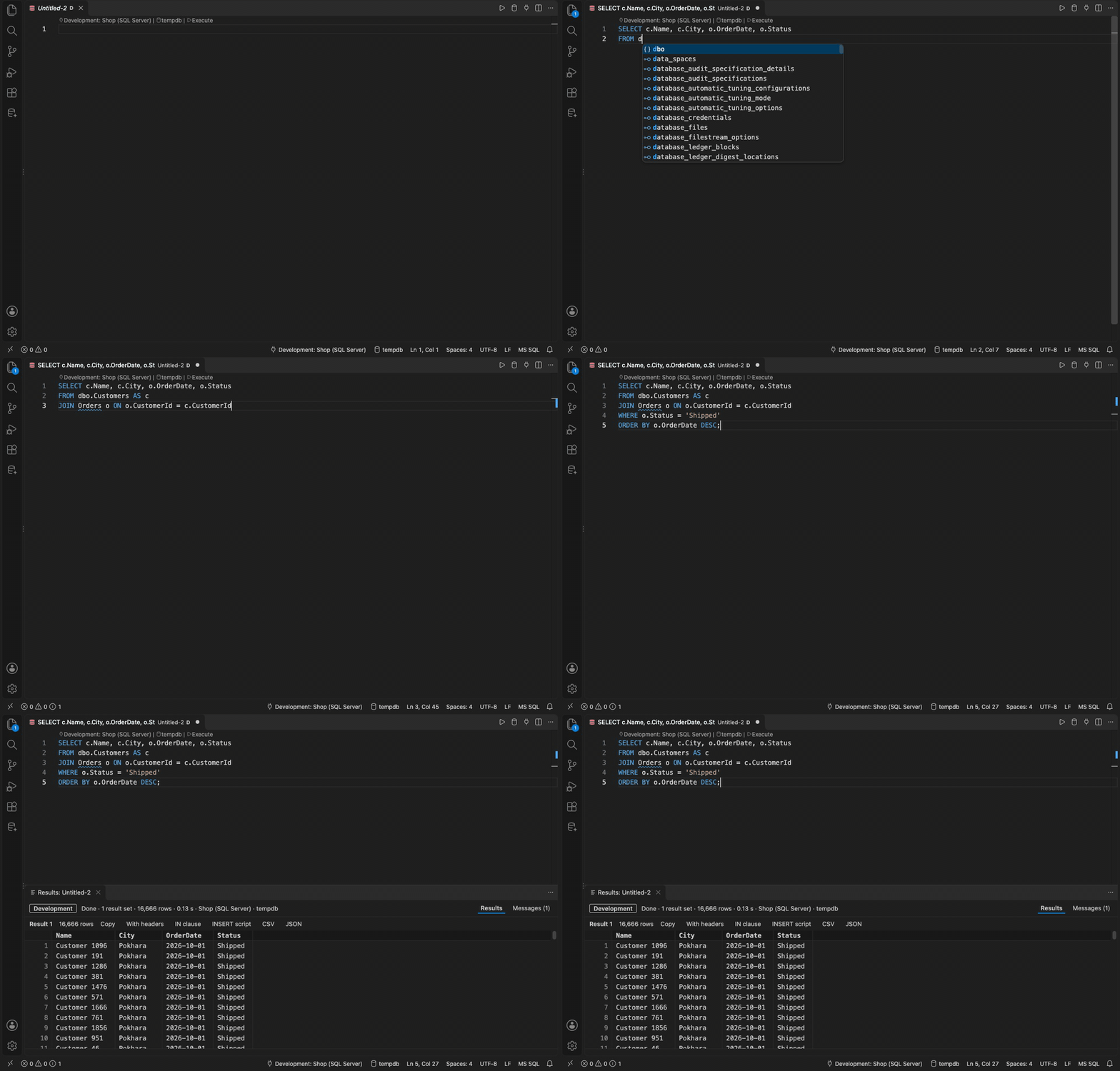
Typing a query: the join comes from the foreign key, then F5 runs it and the results open below Typing a query: the join comes from the foreign key, then F5 runs it and the results open below

Everything for writing SQL, in one extension

Its own connections, its own results grid, and no other extension needed.

Completion

Tables, columns, procedures and functions from your schema. Joins built from foreign keys, aliases added for you, SELECT * expanded.

Snippets

52 built in, such as ssf, ij and cte. Type the shortcut and press Tab. Add your own and share them with your team through a folder.

Formatting

Four built-in styles and your own. Separate commands for casing, brackets, semicolons and qualified names.

Code analysis

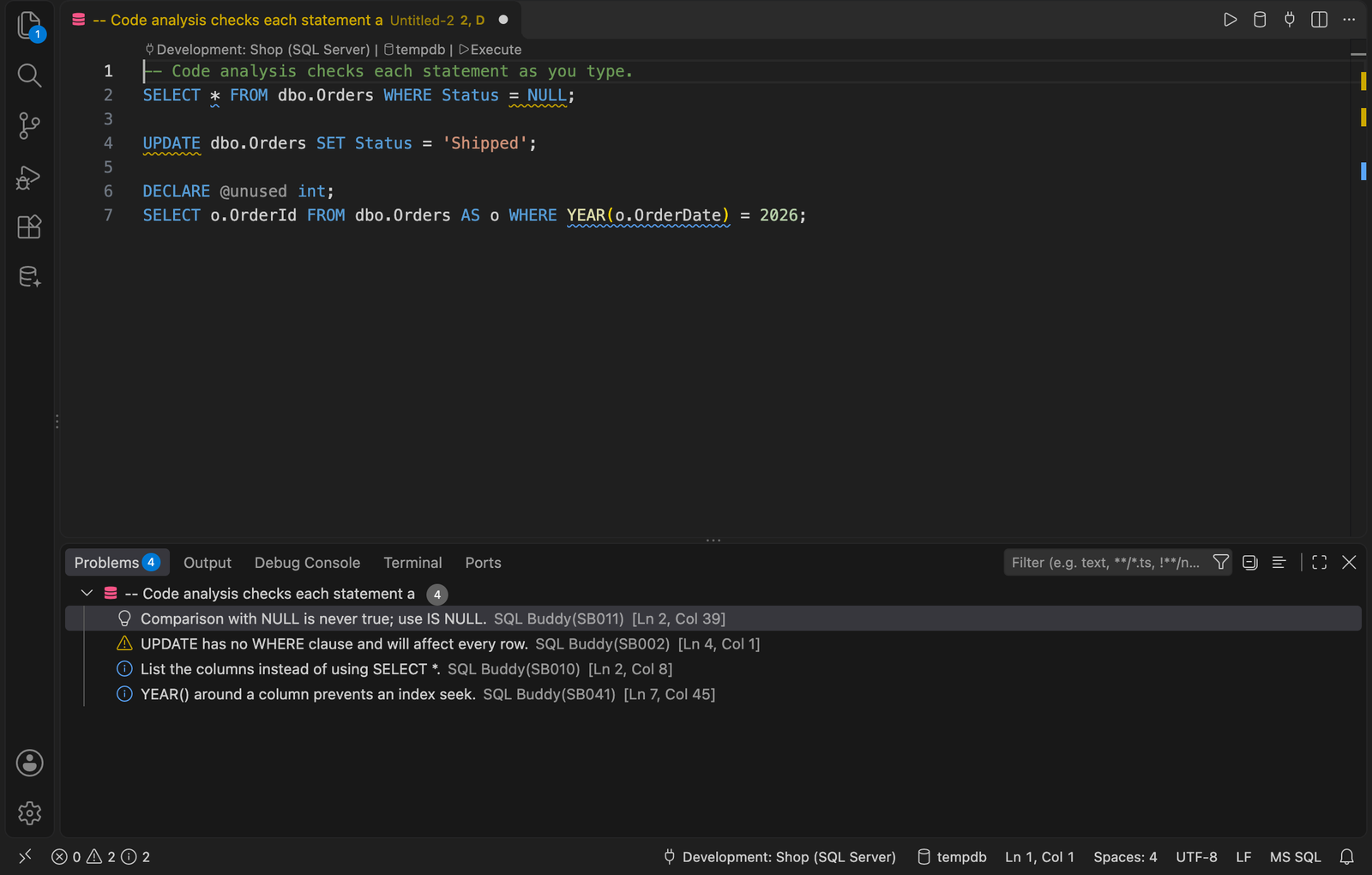
40 rules checked as you type: UPDATE without WHERE, non-sargable predicates, unknown columns and more, many with a quick fix.

Refactoring

Encapsulate as stored procedure, inline a procedure, script as ALTER, Smart Rename, Split Table and Find Invalid Objects.

Query execution

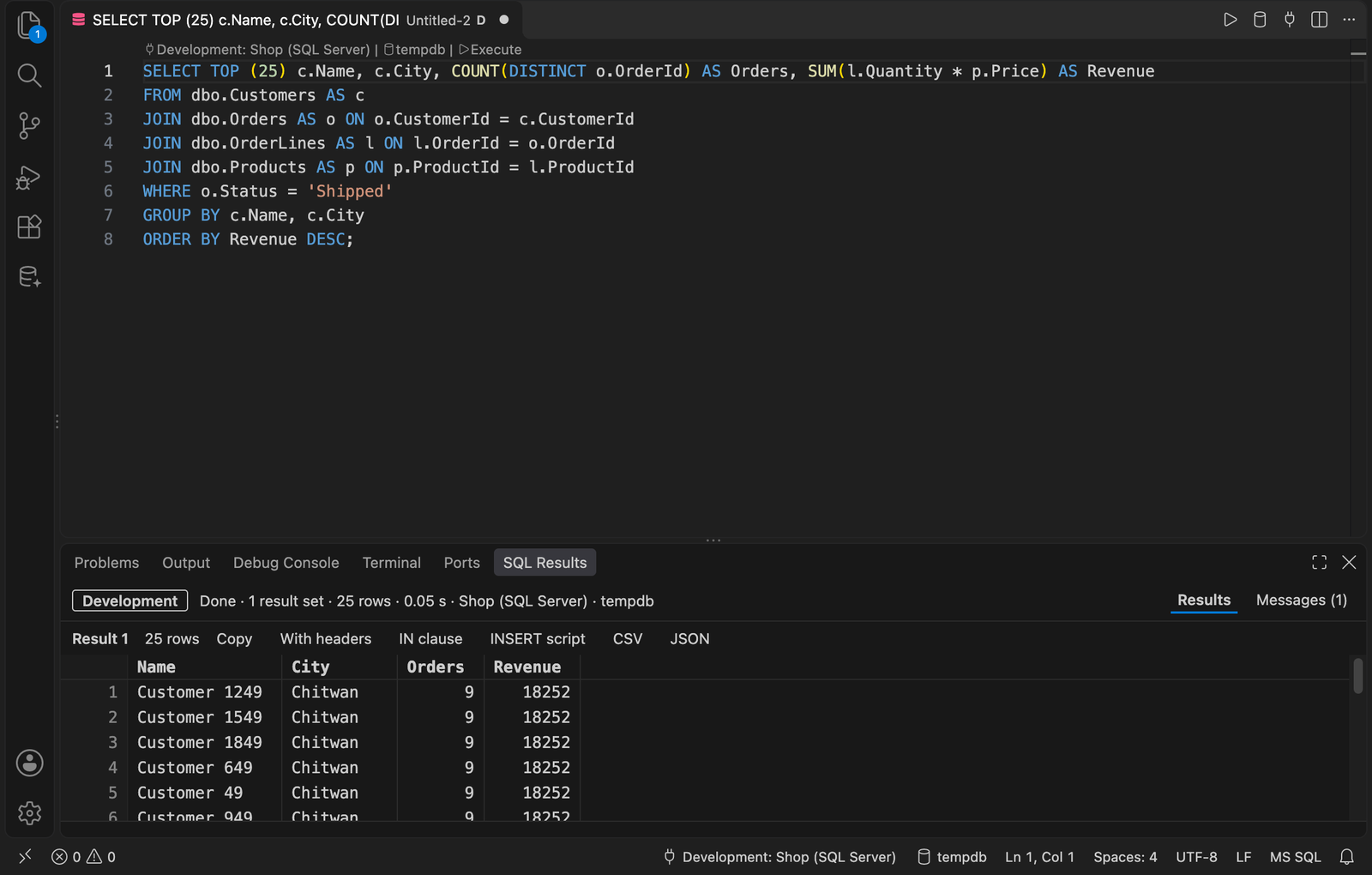
F5 runs the file, the selection or the statement. Several result sets, messages, export to CSV or JSON, history.

Database dashboard

Sizes, backups, risky settings, expensive queries, query plans, deadlocks and index suggestions, each with a script to review.

Profiler

Watch queries as the server finishes them, with duration, CPU, reads and errors. Filter, sort and export the trace.

Safe by default

Tabs coloured by connection, red for production. A confirmation before DELETE without WHERE, DROP or TRUNCATE.

Connections and schema

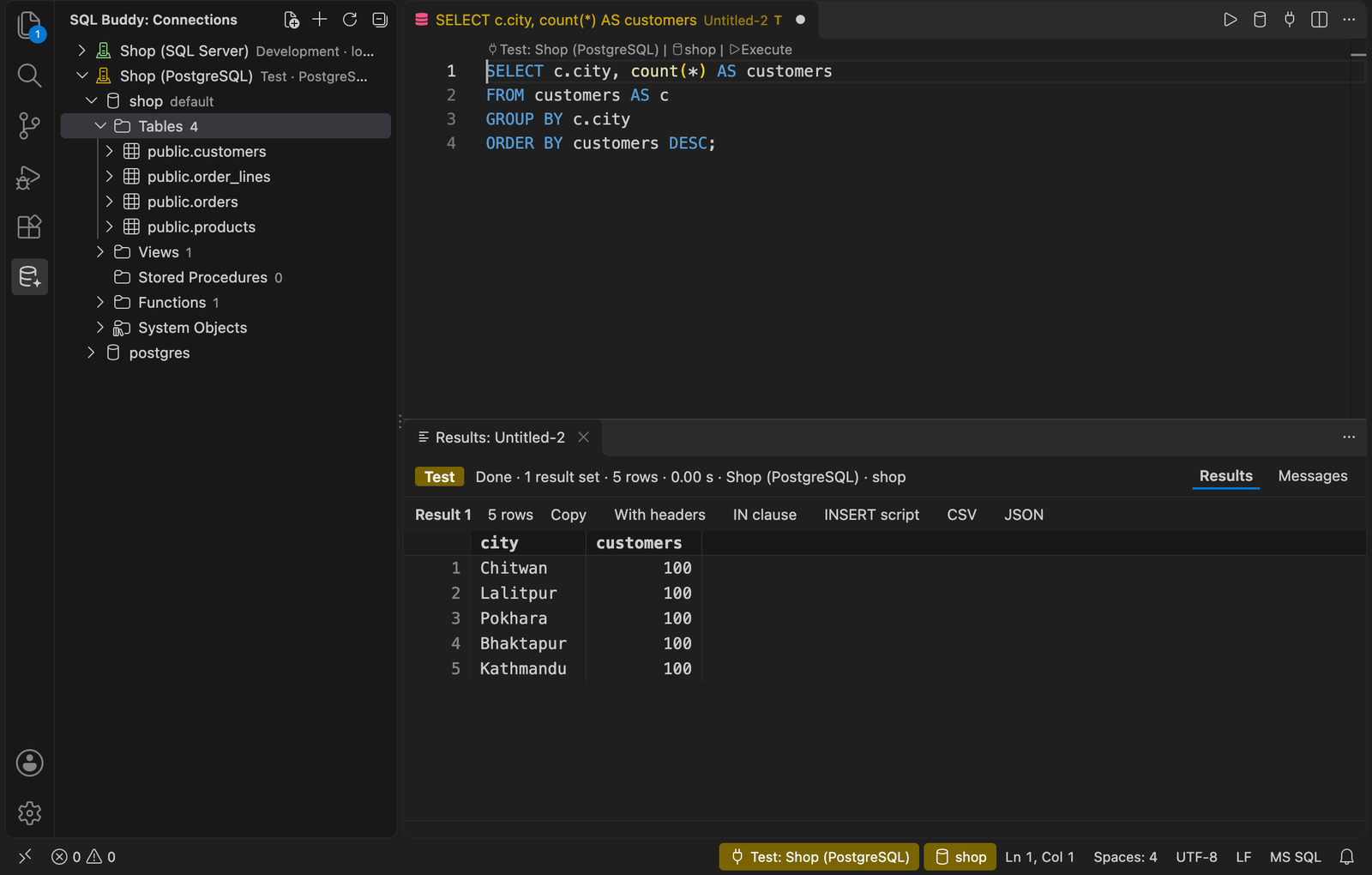
Save connections in the side bar and browse databases, tables, views, procedures and functions down to columns and parameters.

  • Passwords are kept in the operating system's secret storage.
  • Environment labels: production shows red, test amber, on the connection and on every tab that uses it.
  • Script any object as CREATE, ALTER or EXECUTE.
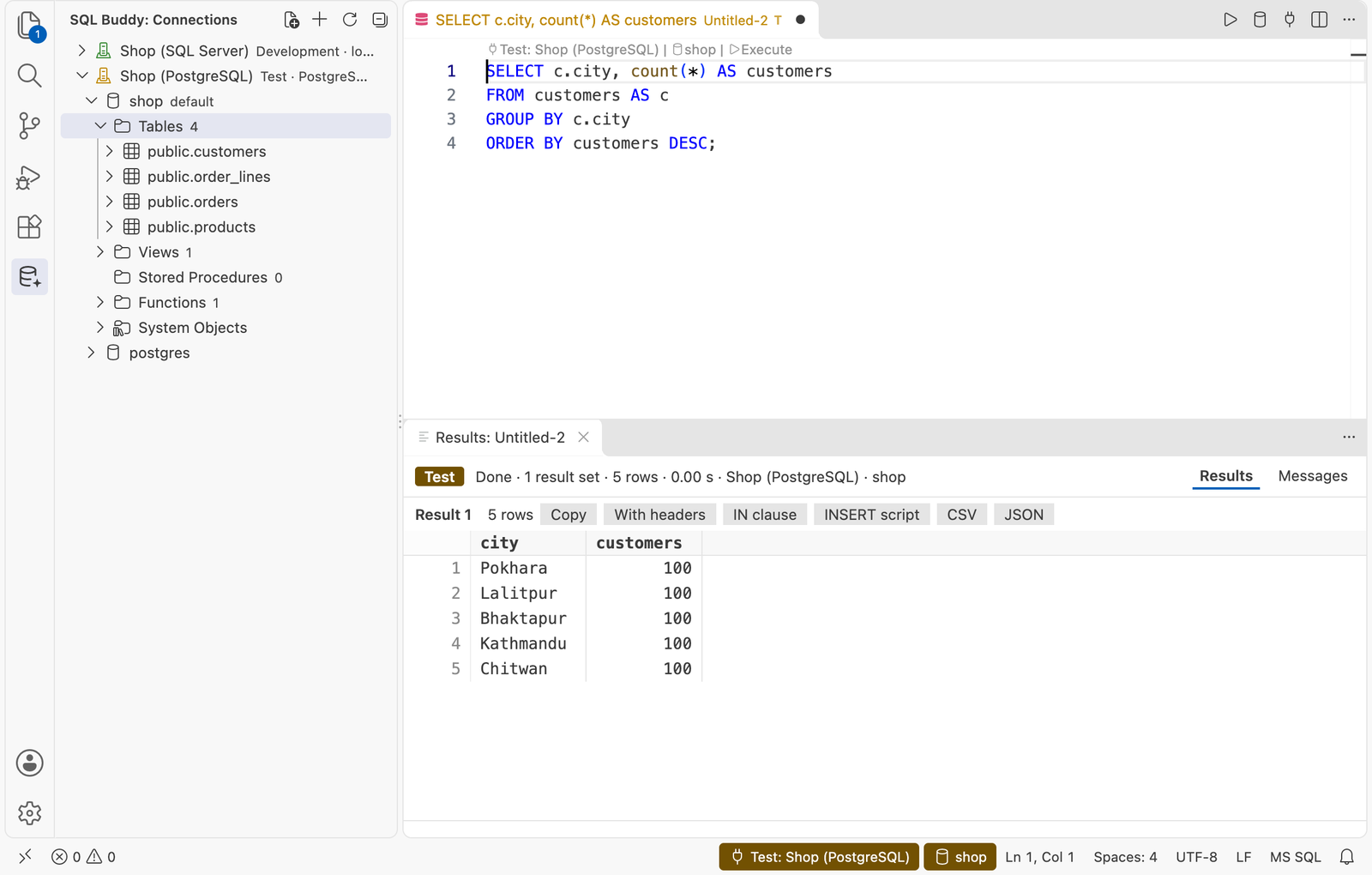
The Connections view with a database open, beside a query and its results The Connections view with a database open, beside a query and its results

Database dashboard

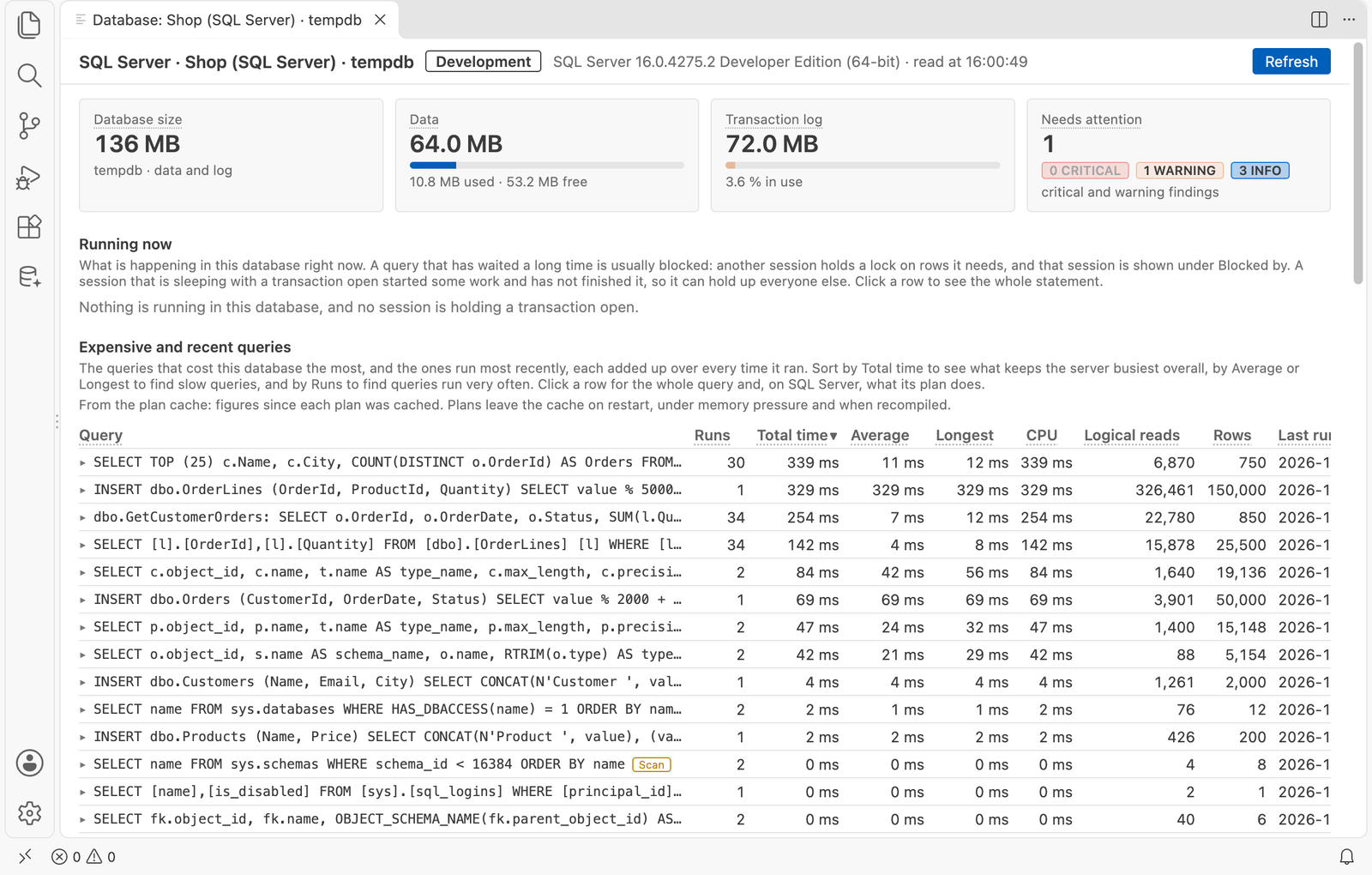
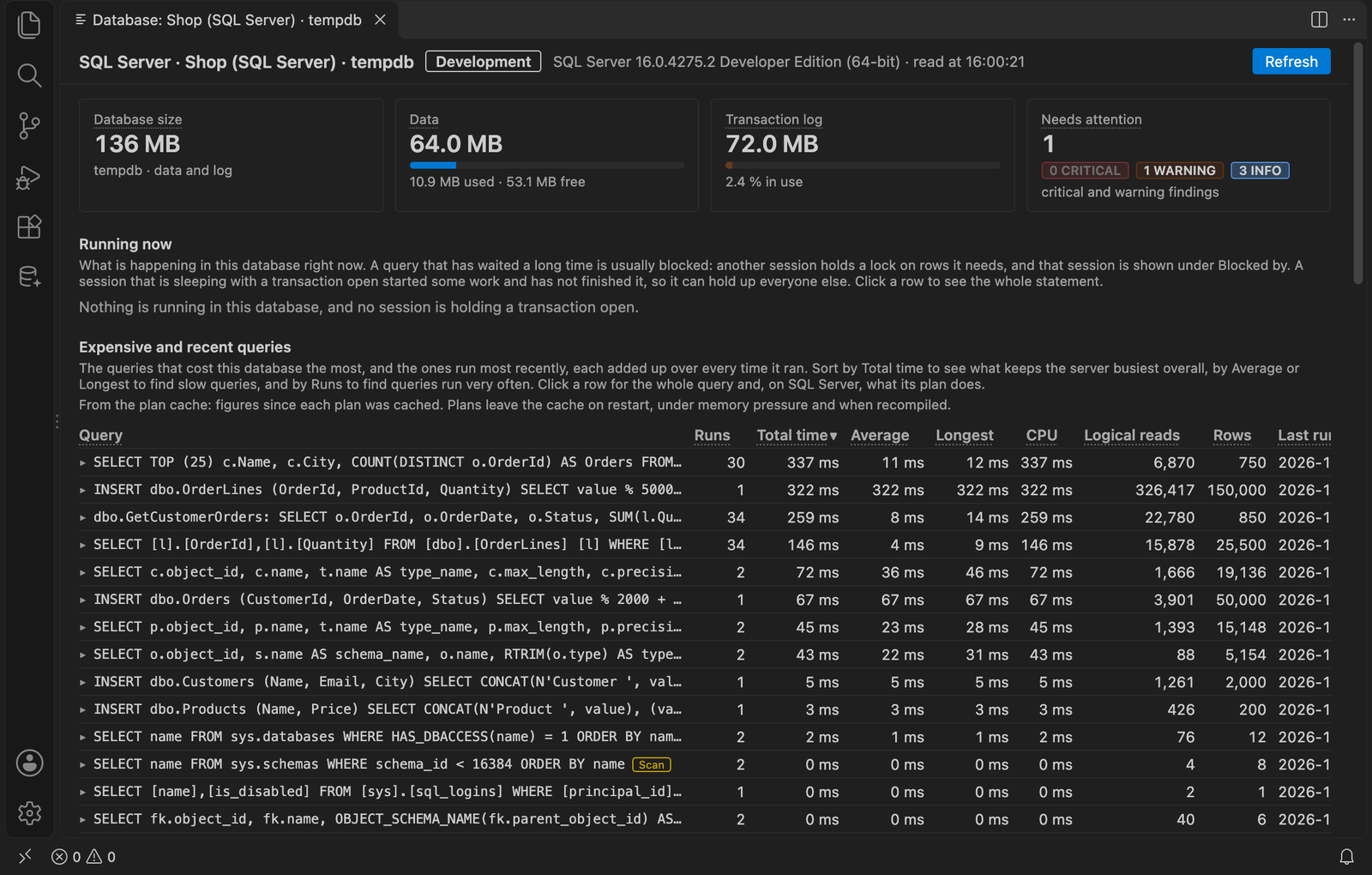
Right-click a connection or database and choose Show Dashboard to see how the database is doing.

  • Size of the database, its data and its log, its files and its largest tables.
  • Checks with recommendations: backups, log growth, disk space, risky settings and accounts.
  • Running and expensive queries, deadlocks, missing and unused indexes, stale statistics.
Database dashboard: sizes, what needs attention, and the most expensive queries Database dashboard: sizes, what needs attention, and the most expensive queries

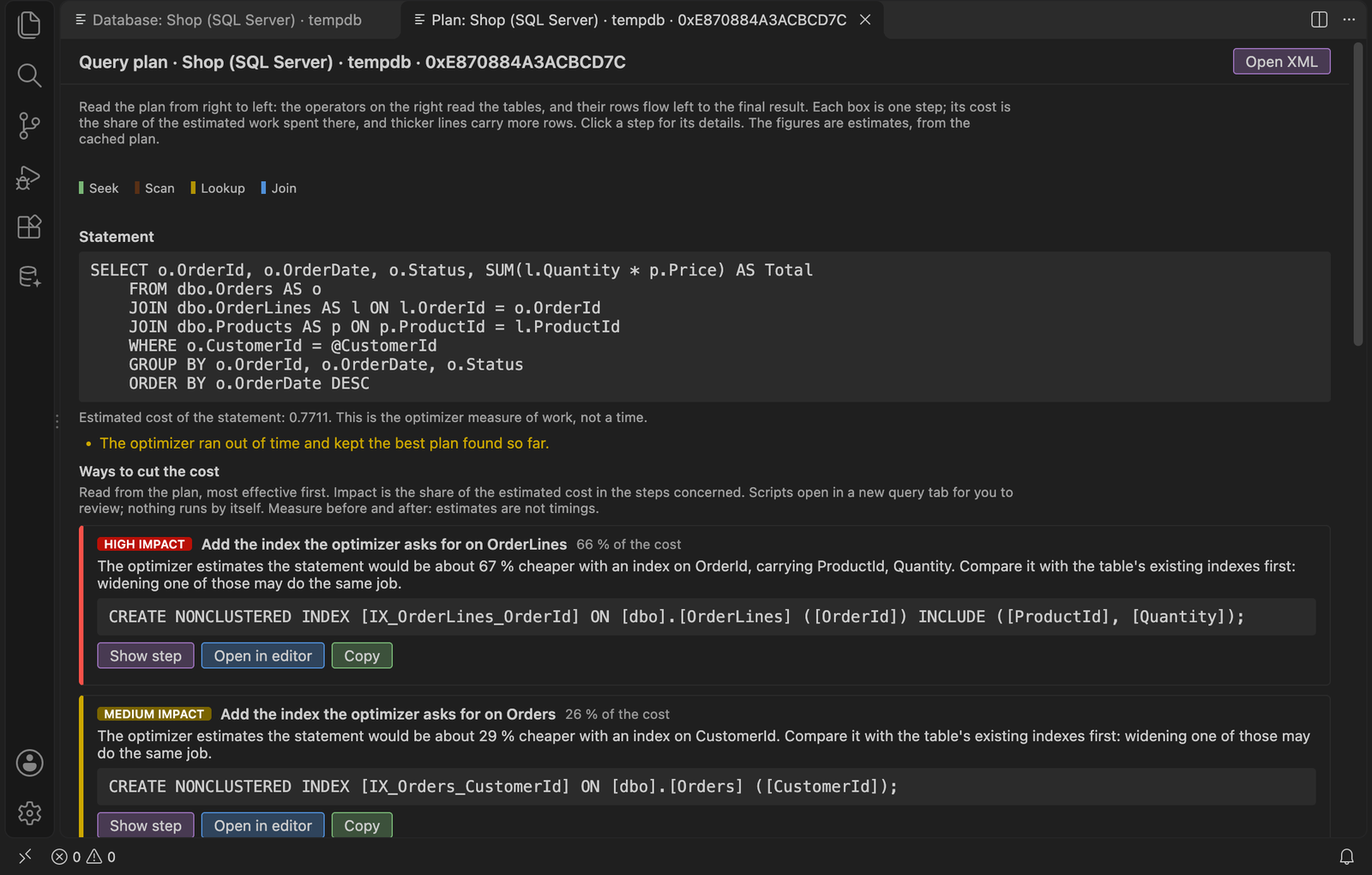
Query plans you can act on

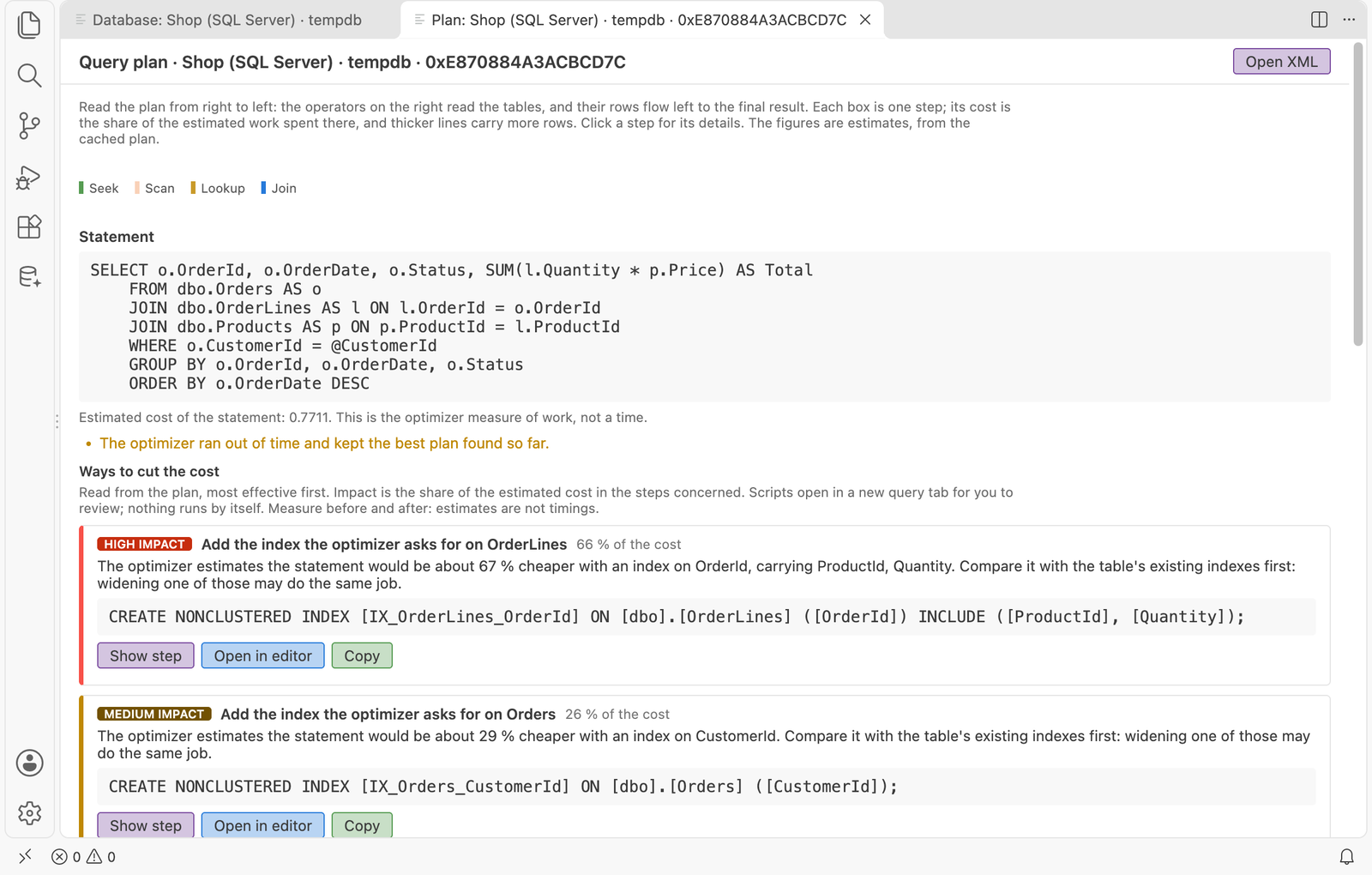
The query plan is drawn step by step, with what each step does and ways to cut its cost, each with a script to review before you run it.

Query plan with ways to cut its cost, each with a script to review Query plan with ways to cut its cost, each with a script to review

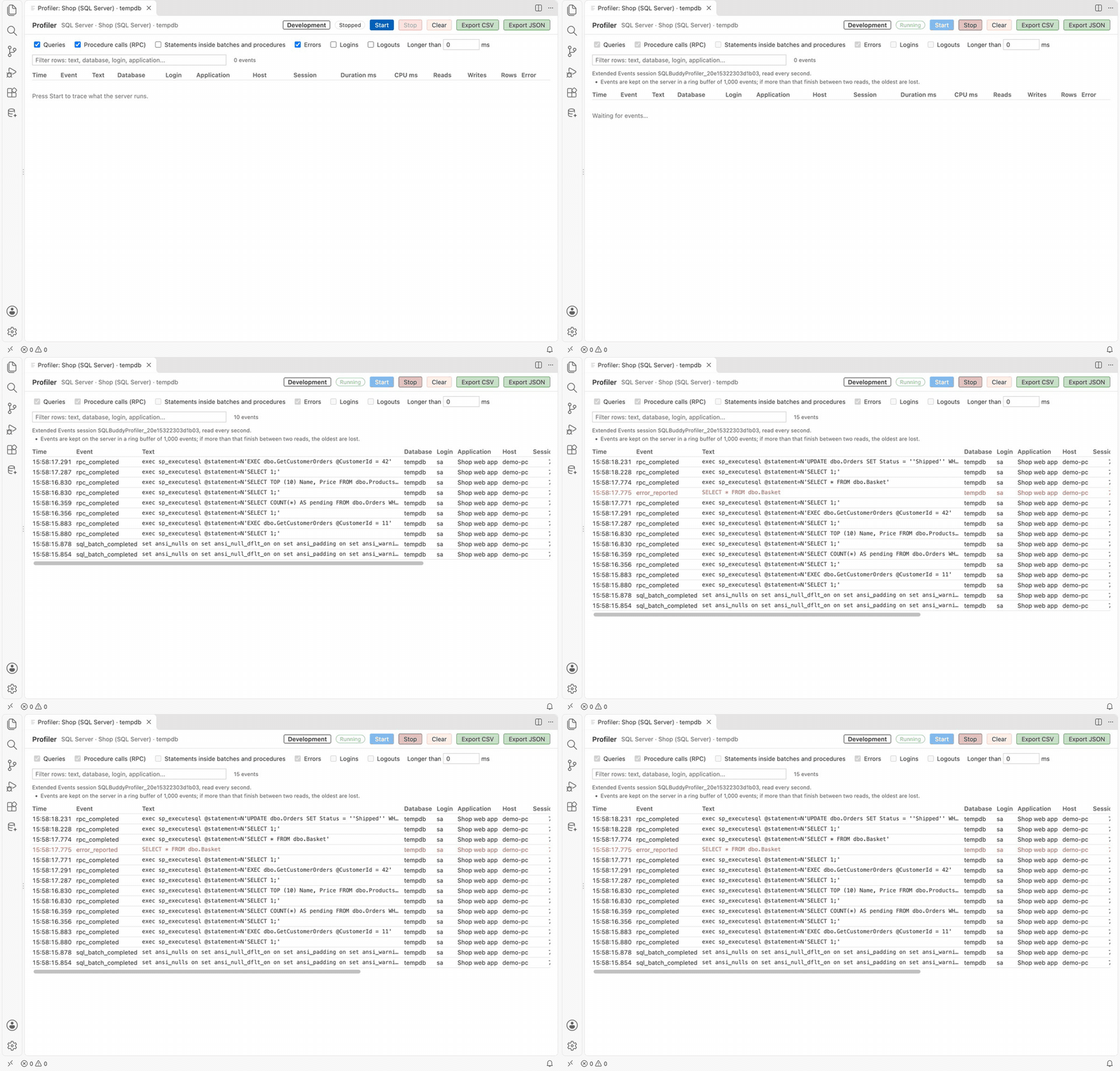
Profiler

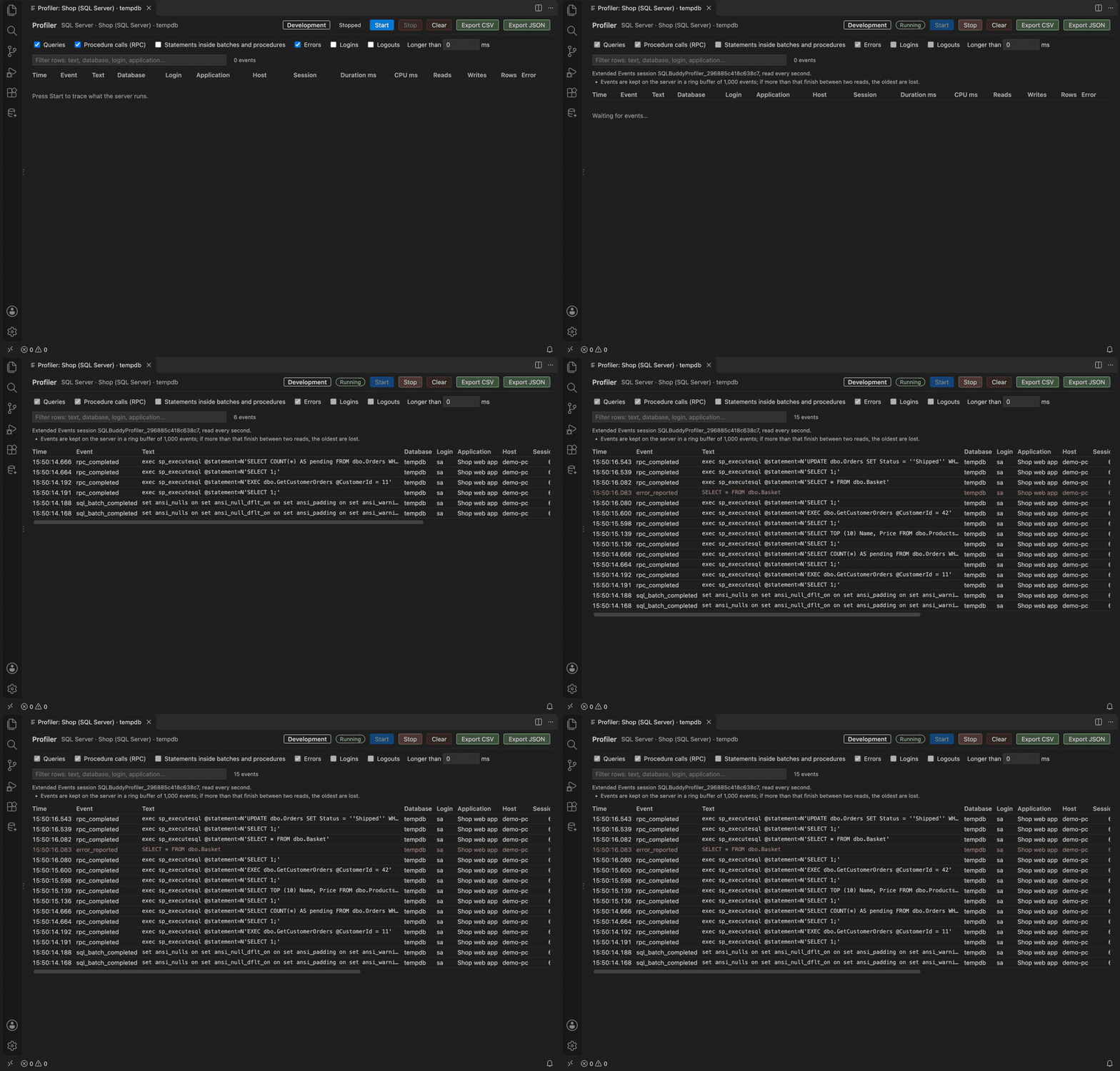
Pick what to capture and press Start. Queries appear as the server finishes them, with text, database, login, application, duration and, where the server records them, CPU, reads, writes, rows and errors.

Profiler: queries from an application appear as the server finishes them Profiler: queries from an application appear as the server finishes them

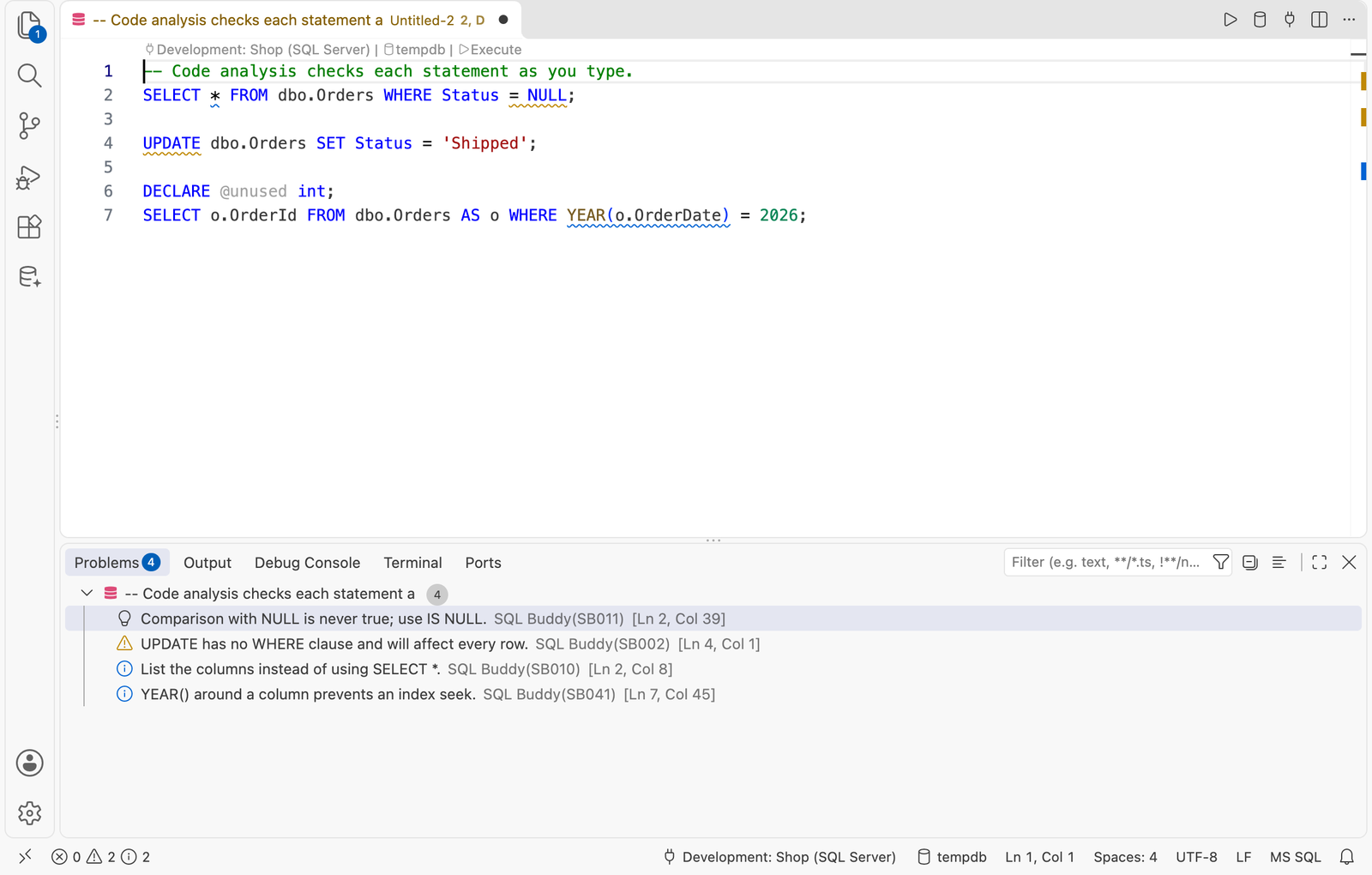
Code analysis as you type

Problems are underlined in the editor and listed in the Problems view. Set the severity of each rule, or silence one place with a comment.

Code analysis: problems underlined as you type and listed in the Problems view Code analysis: problems underlined as you type and listed in the Problems view

Edit as ALTER

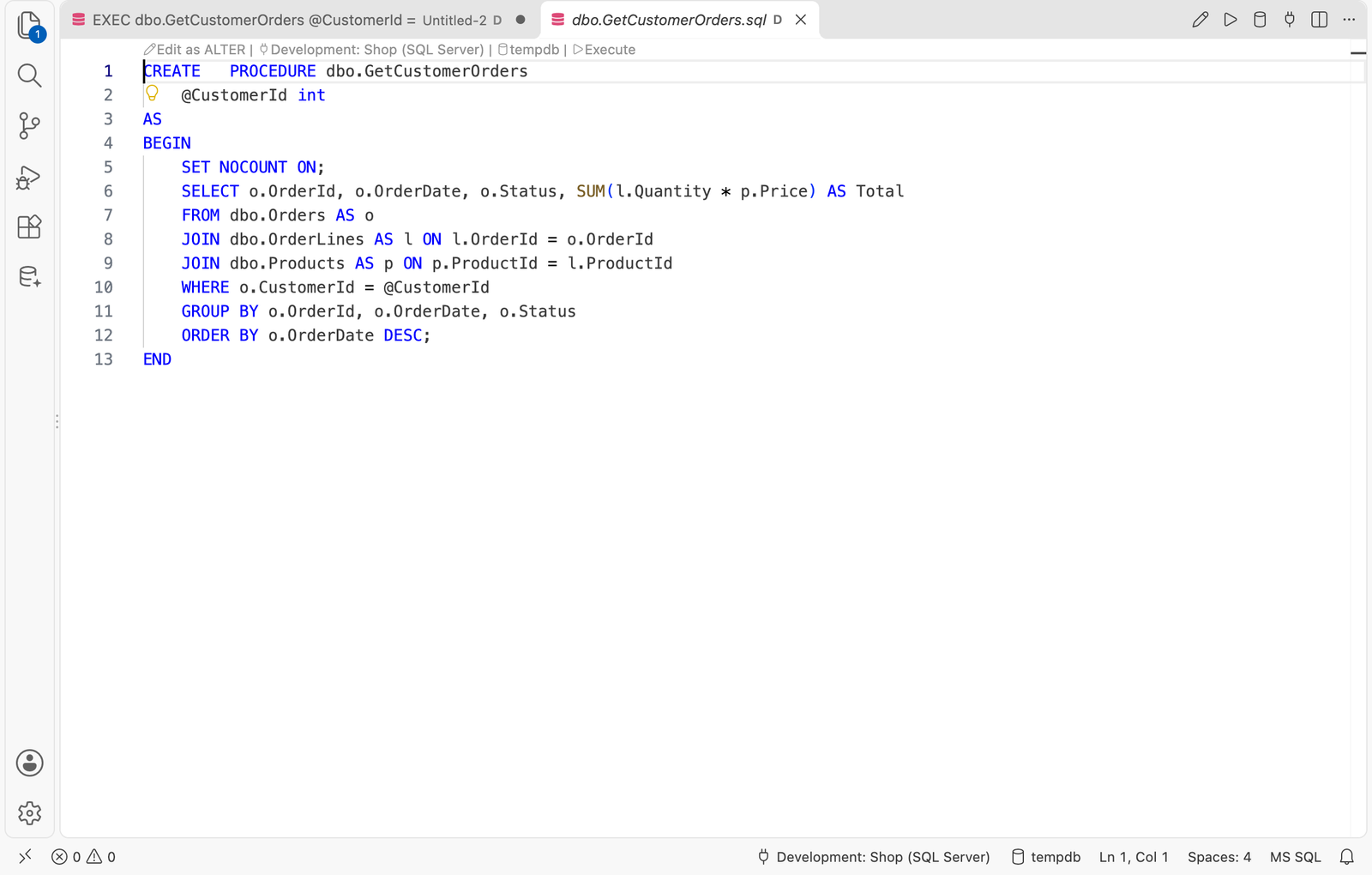
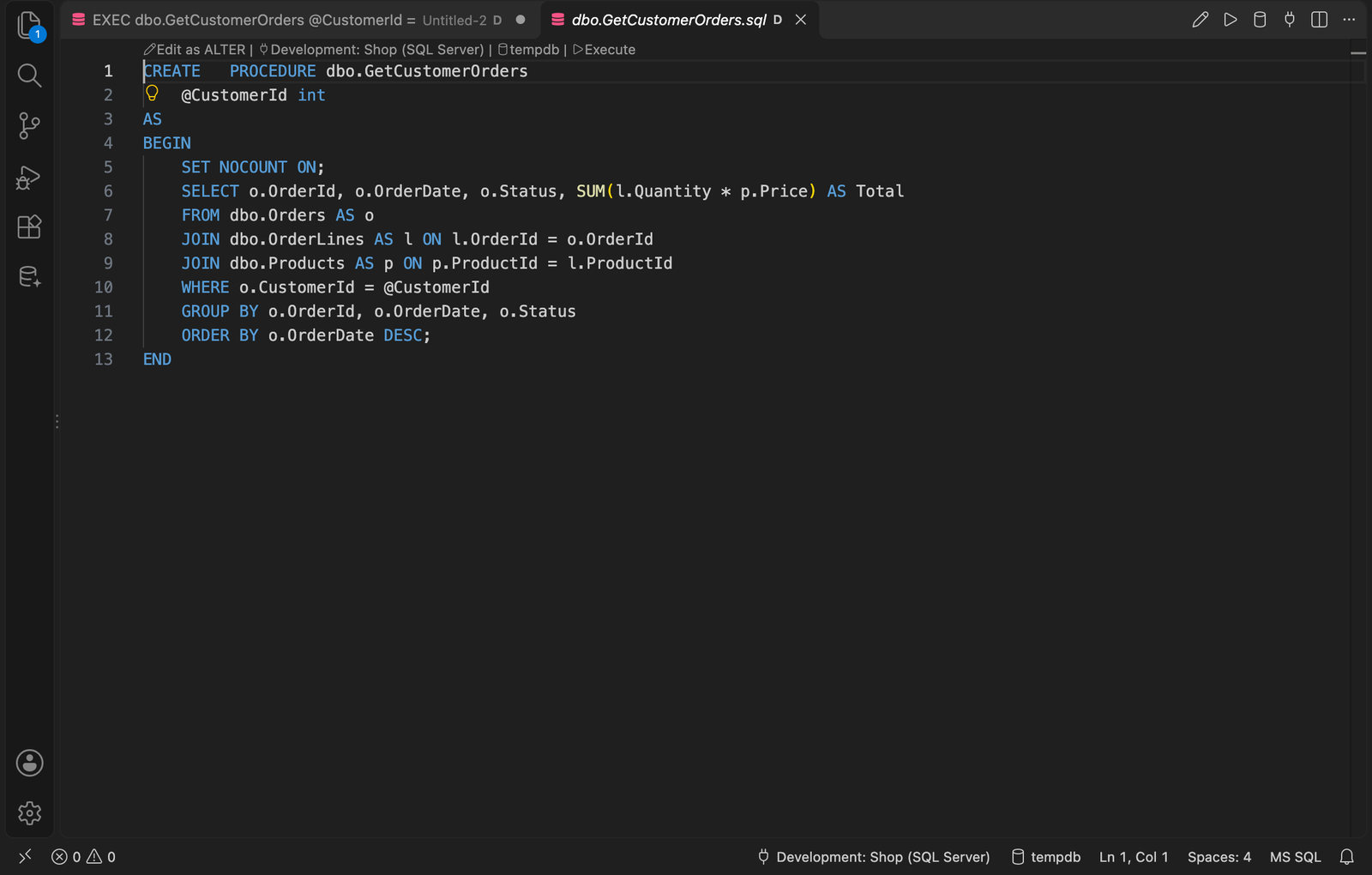
Go to Definition opens a procedure, view or function read-only. Edit as ALTER above it opens an editable copy that changes the object when run.

Go to Definition shows the stored procedure read-only, with Edit as ALTER above it Go to Definition shows the stored procedure read-only, with Edit as ALTER above it

Results where you want them

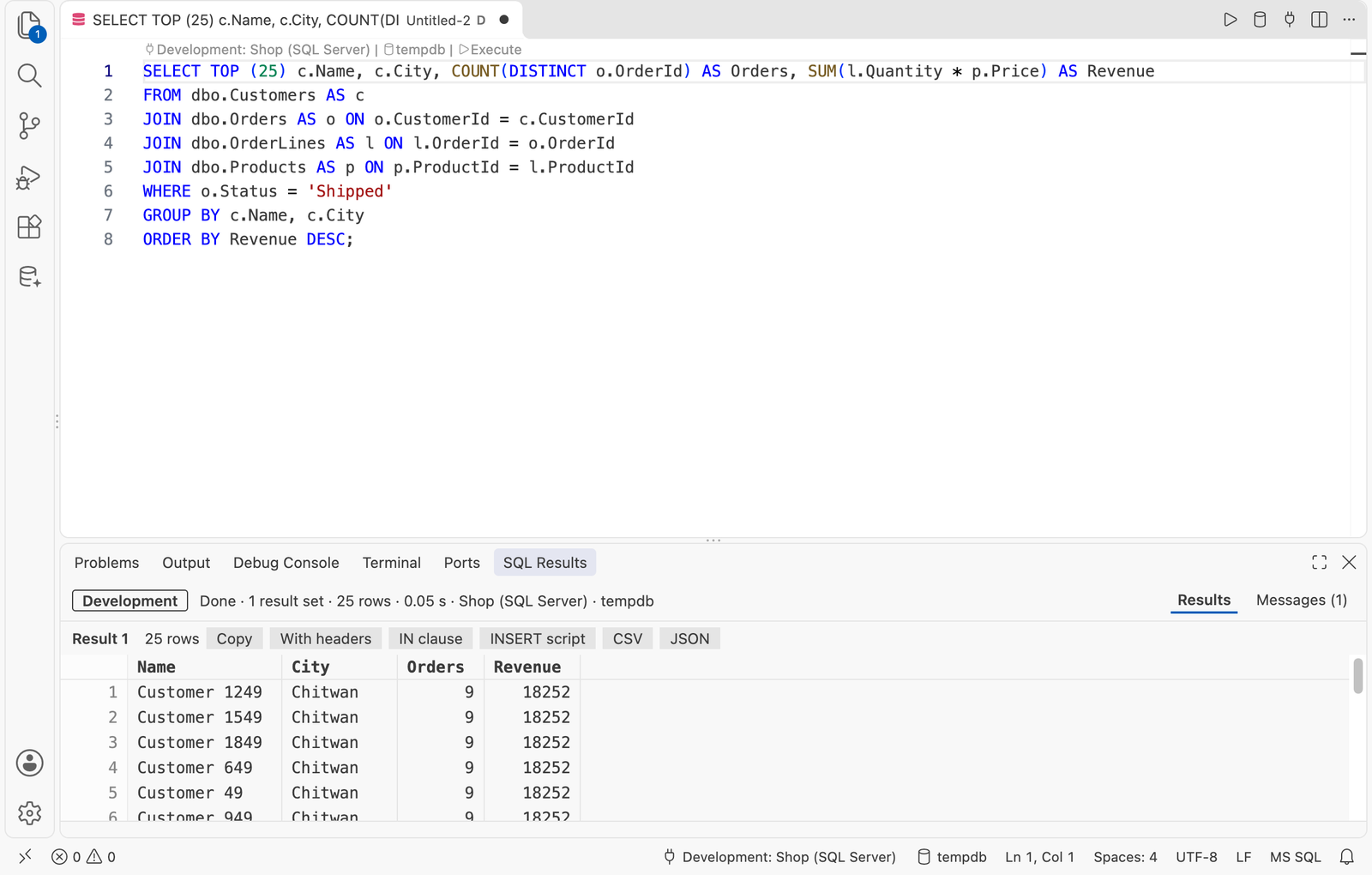
Results open beside the query, below it, or in a view in the panel that you can drag anywhere. Copy cells, copy a column as an IN (...) list, script rows as INSERT.

Results in the SQL Results view of the panel Results in the SQL Results view of the panel

Supported databases

Every engine can be connected, browsed and queried. The T-SQL tools cover SQL Server and Azure SQL.

FeatureSQL Server / Azure SQLMySQLPostgreSQL
Connections and schema browserYesYesYes
Table and column completionYesYesYes
Query execution and resultsYesYesYes
Database dashboardYesYesYes
ProfilerYesYesYes
Drawn query planYesNoNo
Formatting, analysis, refactoringYesNot yetNot yet

Get started

From install to your first result in about a minute.

  1. Install SQL Buddy from the VS Code Marketplace or Open VSX.
  2. Open a .sql file.
  3. Click the SQL Buddy icon in the Activity Bar, then + in the Connections view, and fill in the form. Test Connection checks it before you save.
  4. Type SELECT * FROM and pick a table.
  5. Press F5 or Ctrl+Shift+E (Cmd+Shift+E on macOS) to run the query.

Privacy

SQL Buddy talks only to the database servers you connect it to. It sends no telemetry. Query history and snippets are stored on your machine, and passwords in the operating system's secret storage.

Use with care. SQL Buddy suggests and writes SQL, but you decide what runs. Read every statement before you run it, especially against production. The software is provided as is, without warranty of any kind.